
Save time building your course by reusing content you’ve already created. You can duplicate a block or page to make an instant copy in the same place, or copy and paste to move content across pages and even across different courses.
Blocks #
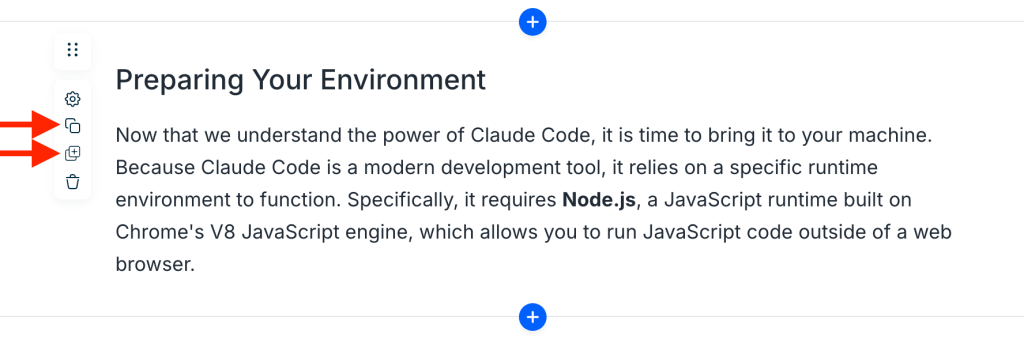
Click on any content block to select it. A floating toolbar will appear right of the block with action icons including Copy and Duplicate.
Duplicate a Block #
Duplicating creates an identical copy of the block directly below the original, no clipboard needed.
- Click the block to select it.
- In the hover toolbar, click the Duplicate icon.
The duplicated block appears immediately below the original on the same page.
Copy a Block #
Copying a block saves it to your browser clipboard so you can paste it anywhere, including on a different page or in a different course.
- Click the block to select it.
- In the hover toolbar, click the Copy icon.
Paste a Block #
After copying a block, a paste banner appears at the top of any page you navigate to.
- Navigate to the page where you want to paste the block.
- Click Paste in the banner at the top of the page.
The block is inserted on that page.
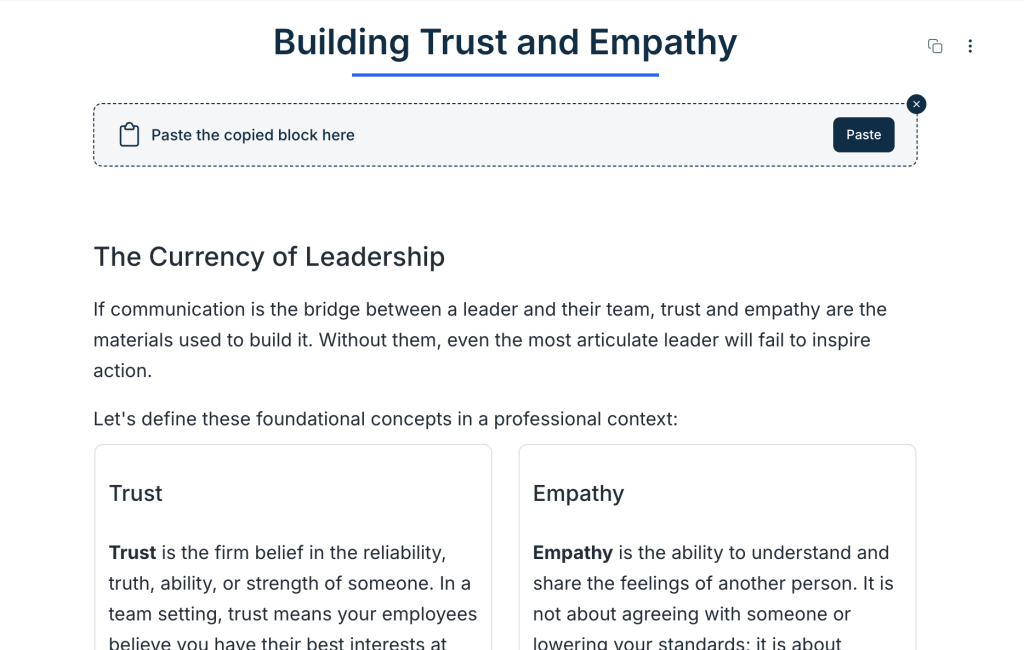
💡 Because copying uses the browser clipboard, you can paste a block into any course, just navigate to the target course and page, and the paste banner will be waiting for you.
Pages #
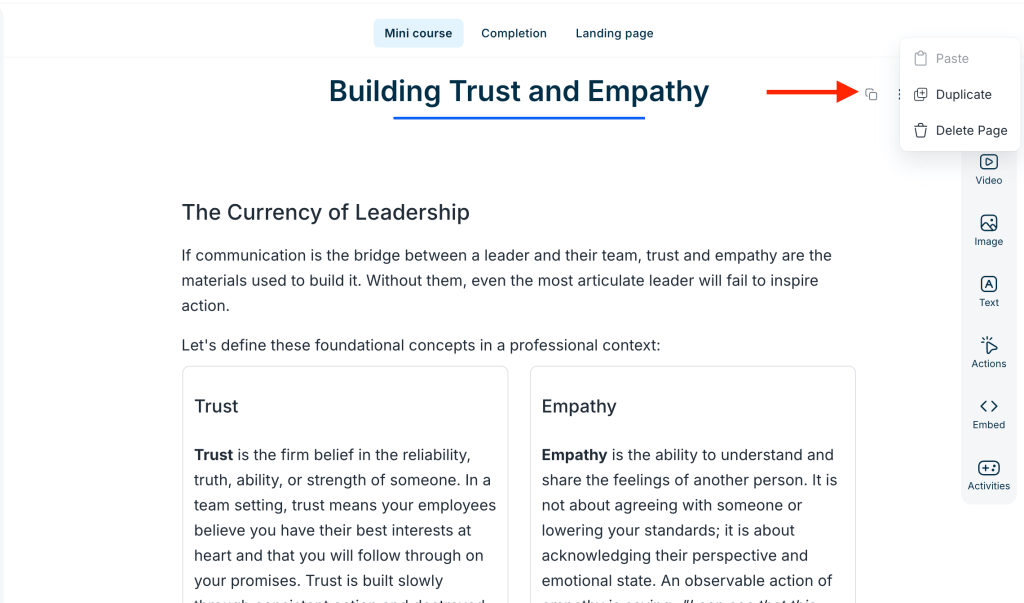
Page actions are available in two places: the three-dot at the top of the currently open page, and the left sidebar where your page list lives.
Duplicate a Page #
From the Page #
-
Click the three-dot menu on the top right.
-
Select Duplicate.
From the left sidebar #
-
In the left sidebar, hover over the page name you want to duplicate.
-
Click the three-dot icon that appears.
-
Select Duplicate.
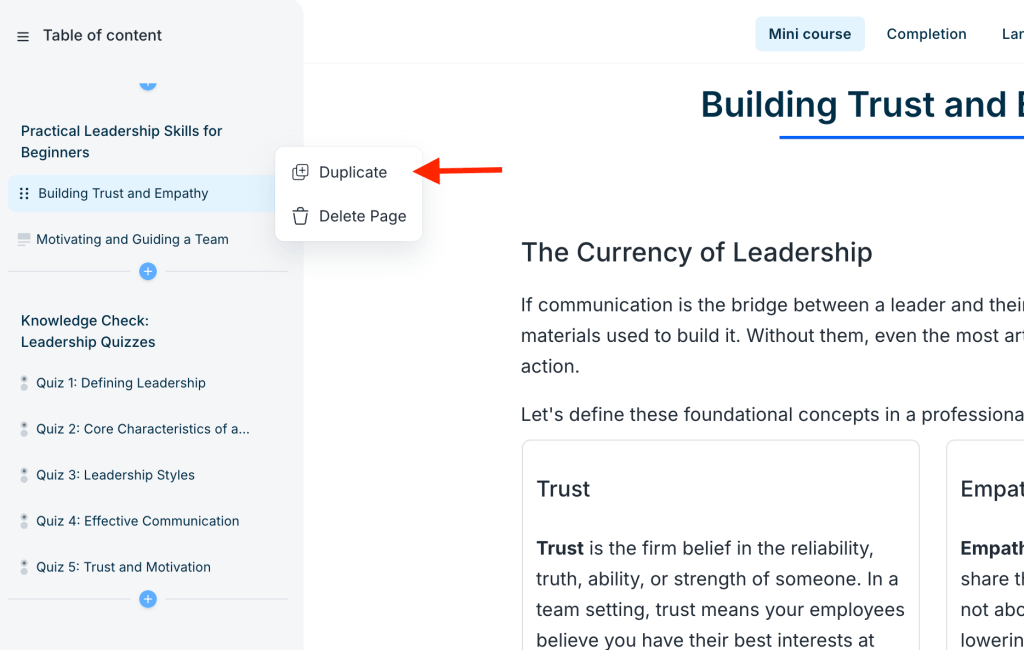
The duplicated page appears directly after the original in your page list.
Copy a Page #
Copying a page saves the entire page, all its blocks and layout, to your clipboard.
- In the page editor, click the Copy icon (next to the three-dot menu).
Paste a Page #
After copying a page, you can paste it onto any page in any course.
- Navigate to the page where you want to paste the content.
- Either click Paste in the banner at the top of the page, or open the three-dot menu and select Paste.
ℹ️ Paste puts the copied page’s content above the current page’s content. Copy/Paste works across courses, open any course and navigate to a page to see the paste option.
❓ Please reach out via support@minicoursegenerator.com if you have any questions about copying, pasting, or duplicating pages and blocks.


