Our MCP server does more than create courses. From inside the AI assistant you already use, you can plan a course, build it, publish it, enroll learners and read their results. Since we launched it in June 2026, more than 400 course creators have connected it to ChatGPT, Claude and other AI tools, and October has been our busiest month yet. Here are the questions we get asked most often, with their answers.
Getting started
What is the Mini Course Generator MCP server?
MCP (Model Context Protocol) is an open standard that lets AI assistants use outside tools. Our MCP server connects your AI assistant to your Mini Course Generator account. You describe what you need in plain language, and the assistant does the work in MCG: it creates courses, writes pages and quizzes, adds media, publishes, and reports on how your learners are doing.
Which AI tools can I use it with?
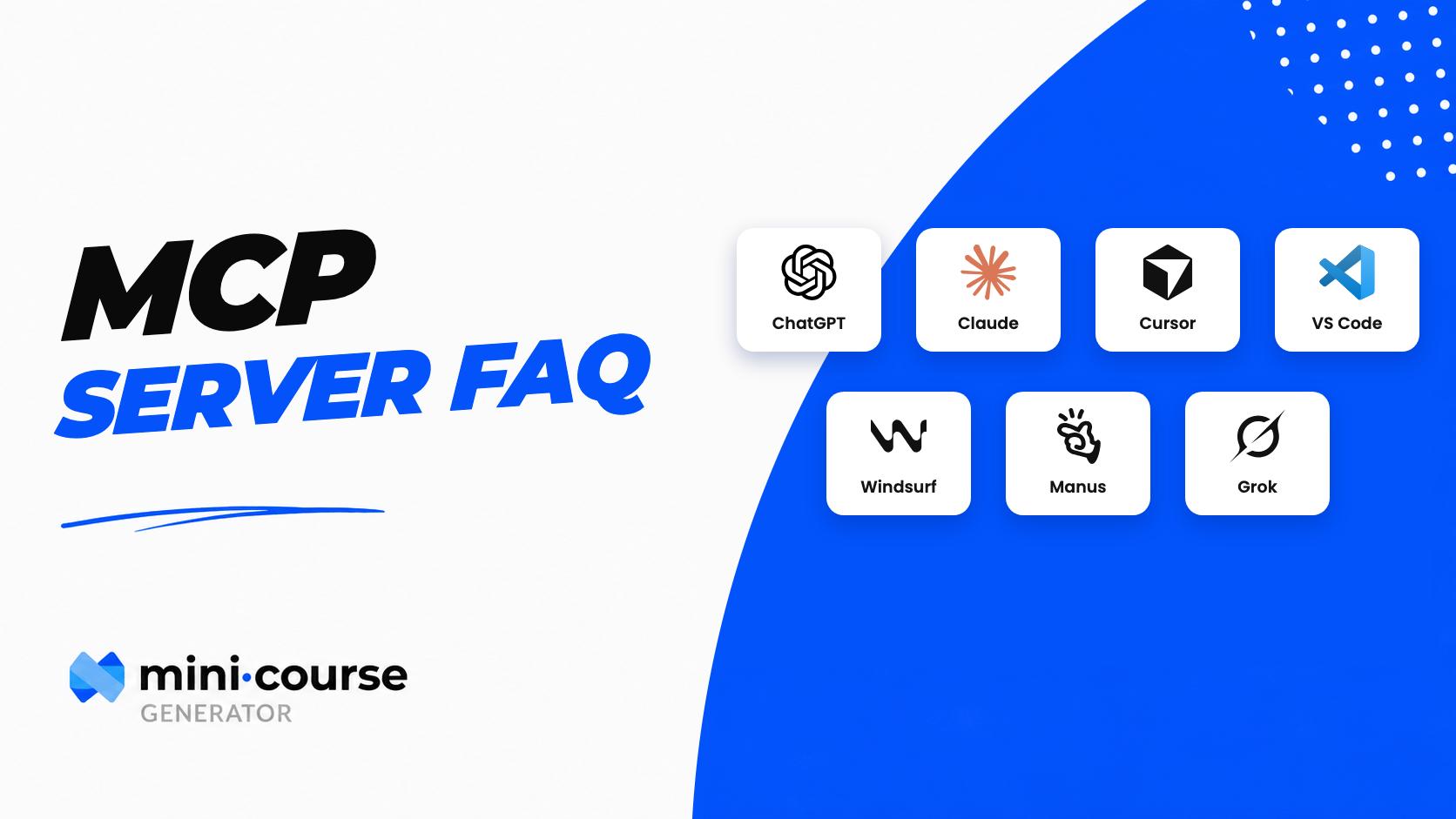
Any AI tool that supports remote MCP servers with OAuth sign-in. Our users connect most often from:
- ChatGPT, where Mini Course Generator is an official plugin in the ChatGPT Plugin directory
- Claude (claude.ai and Claude Desktop)
- Claude Code and OpenAI Codex
- Cursor, VS Code and Windsurf
- Manus, Genspark, Grok, Amazon Quick and Base44
The AI model itself doesn’t matter. What matters is whether the app you chat in supports MCP. If you want to use a model such as DeepSeek or Qwen, use it inside an MCP-capable client.
How do I connect it?
- ChatGPT: open Mini Course Generator in the ChatGPT Plugin directory, select Connect and sign in. Then mention @Mini Course Generator in any chat. You don’t need a URL.
- Claude (web and desktop): go to Settings > Connectors > Add custom connector, paste
https://mcp.minicoursegenerator.com/mcpand sign in. - Claude Code:
claude mcp add --transport http mini-course-generator https://mcp.minicoursegenerator.com/mcp - Cursor, VS Code, Windsurf and similar tools: add this to your MCP settings:
{
  "mcpServers": {
    "mini-course-generator": { "url": "https://mcp.minicoursegenerator.com/mcp" }
  }
} - Tools that only support local (stdio) servers: use
npx -y mcp-remote https://mcp.minicoursegenerator.com/mcpas the command.
Step-by-step guides with screenshots are in our help center article.
Do I need an API key?
No. You sign in with your Mini Course Generator account (email and password, or Google) through OAuth. There’s no key to create, copy or rotate. That also means an AI tool that only accepts an API key and can’t run an OAuth sign-in won’t be able to connect.
Do I need to know how to code?
No. Most people use it purely through conversation in ChatGPT or Claude. Developers can also use it from coding agents like Claude Code, Codex or Cursor, and in their own agent workflows.
Pricing and plans
Does the MCP server cost extra?
No. It’s free with every Mini Course Generator account, including the free plan. You don’t need to upgrade to connect.
Does anything use my AI credits?
Only AI-generated images do: 2 credits per image with the standard model and 10 with a premium model. Text, pages, quizzes and course structure don’t use any credits, however much you build. Images you upload yourself are free too.
Does it work with the free versions of ChatGPT and Claude?
Our side is free, but your AI tool’s own plan applies. Free plans of AI assistants have lower message limits and some limit how many connectors you can add. Building a full course takes many steps, so on a free plan you may hit the assistant’s daily limit before the course is finished. If that happens, continue the next day, because everything built so far is already saved in your MCG account.
Building courses
What can my assistant build?
- Complete courses with sections, information pages and quiz pages, in one prompt
- A course landing page and a completion certificate
- Interactive blocks: cards, numbered cards, highlights, tabs, accordions, tables and code blocks
- Media: images, video, audio, YouTube and other embeds
- Games: crossword, word search, Wordle, riddle, jumble and Pixel Quest
- SCORM 1.2 packages, including custom interactive activities your assistant builds for you
- Themes: layout, fonts and colors
Can it turn my existing material into a course?
Yes. Give your assistant the source: paste text, attach a file, or point it to tools it’s already connected to, such as Notion, Confluence, Google Drive or Slack. It reads the material and builds the course in MCG. A good way to work is to ask for an outline first, refine it in the chat, and then tell the assistant to build it.
Can I use my own images instead of AI-generated ones?
Yes. Your assistant can import an image from a link into your media library and place it on a page. Your own images don’t use any AI credits. When your assistant edits a page that already has an image, it keeps that image instead of generating a new one.
Can I upload SCORM packages or videos?
Yes. Your assistant can host a SCORM 1.2 package or a video inside a page, and it can replace a SCORM package later without changing the page. ChatGPT can’t pass files from your computer to other tools, though. To upload a SCORM file you have locally, or to have the assistant build one for you, use Claude, Claude Code or Codex.
Will my learners see changes right away?
New courses and page edits start as drafts. Learners see them only after you (or your assistant) publish. The draft link works only for you. Course settings, themes and the order of pages and sections are different: those changes go live immediately.
Can it edit courses I built in the MCG editor?
Yes. Your assistant can open any course in your account, read its pages, rewrite them, reorder them, and add or remove pages and sections.
Will my assistant overwrite changes I made by hand in the editor?
It can. When your assistant edits a page, it rewrites the whole page. Some elements, such as hotspot images and questions with more than one correct answer, can only be built in the MCG editor, and a rewrite can remove them. If you’ve polished a page by hand, tell your assistant to leave that page alone, or ask it to show you the new version before it saves anything.
How do I get the best results?
- Start with an outline. Agree on the sections and pages in the chat before asking it to build.
- Give it your real material. Courses based on your own documents, examples and terminology are much better than ones written from a single sentence.
- Say who the learners are, along with the tone, length and how many quiz questions you want per section.
- Ask for interactivity by name, for example “use tabs to compare the three plans” or “end each section with a word search”.
- Review before you publish. Open the draft in MCG, then ask for specific changes.
Can it improve a course based on learner results?
Yes. Ask your assistant which quiz questions everyone gets right or which pages learners struggle with, and it can rewrite them for you in the same conversation.
Learners and analytics
Can my assistant see learner progress and quiz results?
Yes. It can read course and module analytics, the list of learners and their progress, scores and certificates, who finished a course, and each learner’s answer to every question, including game results. For a public course, learners can join without signing in, so there’s no named learner list. You’ll see reach and completion figures instead, and anonymous learners appear with a session ID.
Can it add learners to a course?
Yes. For invitation-only courses, your assistant can add or remove learners by email. Adding a learner doesn’t send them an email, so share the course link with them yourself.
Security and privacy
Is my account safe?
- Access works through OAuth 2.1 with short-lived tokens. Your assistant gets only the access you approve.
- Every action runs with your own account’s permissions. Your assistant can’t do anything you couldn’t do yourself in MCG.
- You can disconnect at any time from your AI tool’s connector settings.
- The MCP server doesn’t store your data. Your content stays in Mini Course Generator, which is hosted in the EU (Frankfurt).
Keep in mind that whatever you share in the chat is also handled by your AI provider under its own privacy terms. Check your AI tool’s data settings if that matters for your content.
Can my assistant delete things?
Yes, and that’s why most AI tools ask for your confirmation before a destructive action such as deleting a page, section or course. Read those prompts before approving them. Unpublishing is safer than deleting if you only want to hide something.
Can I use it in a team workspace?
When you connect, you sign in and choose the workspace your assistant will work in. Your role in that workspace decides what the assistant can do there.
Troubleshooting
My AI tool says “no MCP server found” or shows a 401 error. What should I do?
- Check the URL:
https://mcp.minicoursegenerator.com/mcp. - Remove the connector, add it again and complete the sign-in.
- Make sure your tool supports remote MCP servers with OAuth sign-in. If it only supports local servers, use
mcp-remoteas shown above.
Still stuck? Send us a screen recording through the chat on our site and we’ll take a look.
Do I have to reconnect every hour?
No. Your connection refreshes itself in the background and stays signed in until you disconnect it.
My assistant stopped halfway through building a course. What now?
Everything created before it stopped is already saved in your account. Ask it to continue (“finish the remaining sections”). Long courses can run into the assistant’s message or length limits, and asking it to build one section at a time helps.
More questions
Is there a REST API instead?
Our public REST API is available on the Enterprise plan. If you want an AI agent to build and run courses, the MCP server is the way to go, and it’s free on every plan.
How can I request a feature or report a bug?
Write to us through the chat on our website or at support@minicoursegenerator.com. Many of the features above, such as YouTube embeds, learner analytics, games and uploading your own images, came straight from user requests.